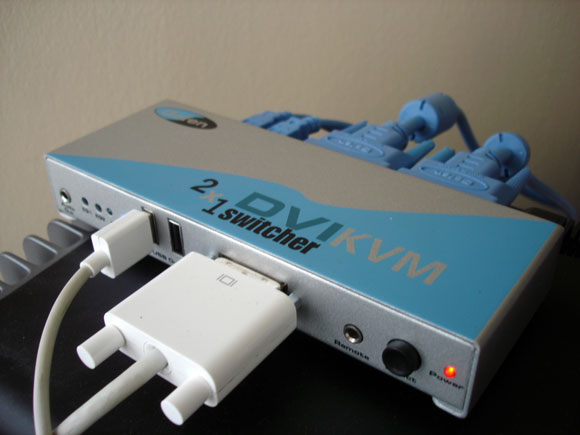
If you have more than one computer, a KVM (Keyboard/Video/Mouse) is an essential device, allowing you to instantly switch between computers from a single display and keyboard/mouse setup. Unfortunately, a lot of consumer-grade KVMs haven’t kept up with current technology. Walk into your local computer superstore and you’ll find lots of VGA switchers, but rarely DVI switchers needed for today’s digital displays. The few inexpensive DVI switchers available often don’t support the higher resolutions of modern, large-sized flat displays.
Gefen’s ex.tend.it 2×1 DVI KVM switcher is a rare exception, and its design and reliability could make it the only KVM you should ever consider. At US$199, it’s a product that’s finally in the reach of the average computer user. I’ve been testing it rigorously here on a Mac/PC setup, and I like what I see.
Making the Connection
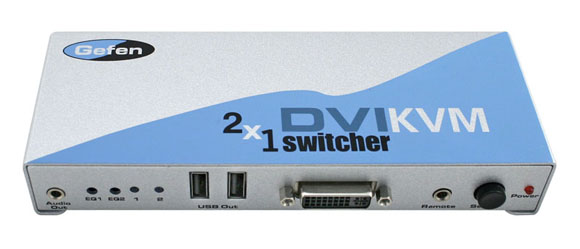
Gefen is a respected brand in high-end A/V and computer switcher, matrix, and router products. Usually these kind of products are priced well out of reach of the average consumer; thankfully, Gefen has pitched its 2×1 KVM at just that market. At US$199, the KVM is extremely price-competitive with lower-end competitors, especially given that all the cables are included in the box:
- Two 6-foot DVI cables
- Two 6-foot USB cables
- Two minijack audio cables
Those cables were all I needed to connect my test setup:
- Apple 23″ Cinema Display, 1920 x 1200 resolution and DVI-only input
- Apple Power Mac G5 Dual-2.7 system with ATI Radeon 9650 video card
- Custom Shuttle XPC mini-PC with NVIDIA 7600 GT video card (as seen previously being built on this site)
- Microsoft Natural Ergonomic Keyboard 4000
- Microsoft Wireless IntelliMouse Explorer 2.0
- Belkin USB 2.0 hub with various USB devices attached
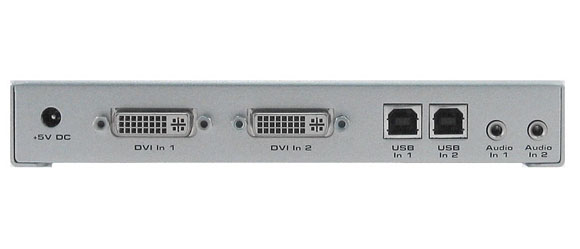
Video: This model supports only up to a 1920 x 1200 (or 1080p and slightly above) resolution, not the higher resolution used by ultra-big displays like the Apple 30″ Cinema Display, but it was fine for my 23″ display.
Note that you don’t have to have two desktop computers, as I do, to make a KVM setup useful. As long as your laptop supports DVI output (as all recent Mac laptops and some PCs do), you can use the KVM to switch between your laptop and desktop machine.
USB:Anything plugged into the hub will now be accessible by both machines.
Audio: I chose not to connect audio, because like most musicians I connect my setup to a mixer first and I use external audio hardware, not the internal audio outputs on the computer. The audio switching works, though, should you need it.
Setup and Use
Gefen’s KVM is simple: press a mechanical button on the faceplate of the unit and switch USB, DVI, and audio from one computer to the other.
First, though, let’s talk caveats. Computers and displays are built with the assumption that the display is always plugged into the computer sans switcher, so there are two important factors to remember — both of which I intelligently forgot or ignored as I began testing:
1. Let each machine boot up entirely before switching. Your computer typically needs to be actively connected to the display to recognize it. (I found this was especially true on the PC.) Boot up the first computer with the KVM switched on, then switch to the other computer and boot it up. Wake from sleep generally works fine once you’ve done this, so this is only an issue at initial boot or reboot.
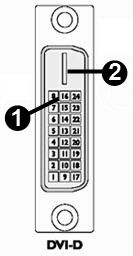
2. You’ll need to make an adjustment to your DVI cable before use with a Mac. Apple in their infinite wisdom breaks with the DVI specification in the way the hot detect pin is set on the DVI cable itself, as detailed in a Gefen FAQ. Pin 16 is set to “low” on Apple computers; it should be “high” according to the DVI spec. Sure enough, without making the modification my Mac would sometimes spontaneously shut down during switching. Users have also reported other symptoms, like intermittent blinking.
The good news is, you can solve the problem by taking a pair of pliers to the cable and removing the offending pin. (Destructive use of tools on computer equipment? Always a bonus.) You only need to make one modification, to the DVI cable you’re running between your switcher and your Mac, and you only need to do it to one end of that cable, not both. (The display, even though it’s made by Apple, doesn’t need the modification.)
I took an ordinary pair of needlenose pliers, grasped pin 16, and pulled hard. The pin is fairly long and firmly seated in the cable, so don’t be gentle — yank that sucker. (The narrower the tip of your needlenose pliers, the easier this task is.)
Pin 16 is easy to spot (1), as it’s centered underneath that longer, flat piece on the DVD-D cable included with the switcher (2).
With pin 16 out, the Mac worked perfectly.
In the Studio
I’m completely addicted to this KVM. The video input switch is seamless and quick, and the build quality is superb: this unit and the included video cables are rugged and should stand up well to abuse. I could even see taking the KVM on the road for use on installations or performance. The unit tucks neatly atop one of the speakers (studio monitors) on my desk, for easy access to the button. (Gefen also sells a cheap remote unit if you need to locate the button somewhere other than on the KVM itself.)
The usefulness of having a KVM in your studio to me can’t be overstated:
- Ergonomics and space: While it’s possible to put displays next to one another or use a laptop on your desk next to a desktop, I find it’s easiest ergonomically to locate a good-quality keyboard, mouse, and display in one, convenient location. This is all the more true here in Manhattan with limited space.
- Dedicated machines for cross-platform use: Sure, dual-booting and parallel operating systems are all the rage these days, but to me, nothing beats having dedicated machines for the task. I’m able to switch between the Adobe Production Suite, which I’m running on the PC, with the Apple software running on my Mac.
- Rendering: Finally, I can leave one machine rendering or working on some other task while I continue working on the other machine.
- Road rig, home rig: For live visuals, it’s great to be able to “dock” my road/performance machine with the KVM and switch back to my studio-only machine.
- On-the-road switching: We’d be remiss on this site if we didn’t mention the usefulness of switchers in interactive visual installations and live performance rigs, any time you need to operate with DVI projectors and high resolutions. I didn’t get a chance to use this application, as I usually project at VGA as a maximum configuration for those kinds of projects, but it’s comforting to know this gadget is in my studio should I need it.
My only complaints, in fact, seem to come from my Windows computer and not the KVM. There’s a significant delay of several seconds on Windows XP while the computer sets up USB devices like the mouse and keyboard. (The Mac responds almost immediately.) I’ve occasionally been unable to wake the PC from hibernate mode using the switcher, but I can add this to my long list of complaints about XP’s buggy hibernation support.
Conclusions
All in all, this to me is the perfect KVM at the ideal price. If you don’t like booting up the machines separately, Gefen makes a separate DVI Detective accessory that solves the problem, and the accessories page lists various remotes if you need your display to be in a different location than the switcher, whether to cover a few feet or to separate your monitor, keyboard, and mouse from the CPU entirely, as in an audio production studio.
I’m definitely keeping this KVM, and I’ll be looking at Gefen’s products for more advanced matrices and switching should I get lucky enough to be configuring multi-DVI or VGA projector setups.
As always, we’re happy to hear your thoughts on KVMs and other accessories, and will be glad to ask questions. Hit comments, or head over to the Create Digital Motion forums.
In the meantime, this product definitely gets our “recommended” label.
Gefen 2×1 DVI KVM Switcher [Gefen.com]
mmm this looks interesting..i am considering a mac pro next to my G5.
I thought remote desktop would be a solution to share my 3 apple alu monitors. This geffen only allows the use of 1 monitor…am I right?
Thta makes it unusable for me. How does one connect a 30 a 23 and a 20 inch to a KVM?
The idea of this is to use one monitor, two computers. I'm not sure exactly what you have in mind; in your case you might just connect those three displays directly to your two Macs and use … darnit … Jaymis, what's the name of that software you use?
If you want to share one mouse and one keyboard with one or more computers(not one monitor like the KVM switch does) try using the application TELEPORT, it uses Bonjour(Rendevous) technology to seemlessly pass the mouse and keyboard use to another computer by just moving the cursor to the edge of the screen.
"eleport is a simple utility to let you use one single mouse and keyboard to control several of your Macs.
Simply reach the edge of your screen, and your mouse teleports to your other Mac! The pasteboard can even be synchronized between the computers.
How do I use it?
Using the convenient Preferences Pane, you configure which hosts you want to control, arrange them graphically like in the Monitors panel, and you're ready! Simply reach an edge of the screen where a slave host is connected, and you take control of the other Mac. The keyboard is acting like if it was connected on the controlled host, and the pasteboard has optionnally been synchronized. On the master computer, a nice notification indicates that it controls another Mac, and shows you the position of your mouse cursor.
To take back control of your main Mac, simply drag the mouse back from where your cursor came, just like when you have several monitors.
I wrote about software solutions on CDMusic:
More Control: Wrangle Multiple Computers with Synergy
Synergy is the cross-OS solution, it's open source, free and works for Mac, Windows and *Nix. It will paste text from the clipboard, but not files. Multiplicity (as mentioned in the comments of that post) is windows only, but it will paste files as well as clipboard.
Those solutions require 2 or more computers with monitors connected to each one, so they're allowing you to control the separate desktops with one keyboard and mouse, a virtual KVM if you will.
If you want to have all the monitors plugged into one computer, then you'll need a remote desktop app. I still use this method for my fileserver/webserver/development machine, but I found remote desktop apps to be annoying to use for production.
Macha, give Apple's remote desktop applications a go, but I'd suggest plugging 2 monitors into your main machine and one into the secondary, then controlling them with synergy or Teleport. Likely to be a much smoother experience, depending on your speficic requirements.
[…] Now that a cheap SFF PC or Mac mini can output high-definition DVI, your next problem is how to manage all those high-resolution digital signals for display. Gefen, who made the switcher I’ve been enjoying so much (see previous review, 2×1 DVI KVM), have a slew of new DVI solutions they’re rolling out at the AES audio convention. Why AES? Because studios will love these setups, particularly in the case of the extenders. But they could be equally at home in a multi-computer setup or installation work. Yep, it’s another CDMo post that will have to have a big “grant application”/”budget” warning on it, as these could be spectacular for setting up multiple-computer, interactive installations: […]
Is it possible to use a DVI extension cable and pull the pins out on the extension, instead of taking pliers directly to my Apple 23" ? Somehow I just can't see myself doing that.
Don't worry — you'll pull the pins on the cable. It's no big deal. Plus, remember, it's the cable going between the KVM switcher and the computer, not the cable that's hard-wired to the display.
How did you connect the USB hub to the KVM switcher?
Hi Rundfunk,
As you can see in the picture on the front of the unit (next to the DVI out), there's not one but two USB ports. So you can use those. Of course, that doesn't preclude you from connecting USB devices that don't need to be switched directly to the computer. I do that with devices that I either don't need on both machines, or that cause issues when constantly plugged and unplugged (which is effectively what you're doing when you're switching).
But the KVM provides two powered USB outputs — very handy. (For reliability, I'll usually separately power the hub, as well.)
Peter
I have it it works fine from the keyboard but from the mouse no at all there very often a very long click delay , so what i do is using a wireless mouse independantly from the kvm and use the switcher only for the keyboard and the monitor.
I have the ktm for two computers awitching as well as the one for four computer both shows the same behavior, beside that it works fine.
Tip in case you're using this with a MacBook: I am using this unit with a MacBook and a PC. The MacBook was going to sleep every time I switched away from it if the lid was closed. I installed a handy free utility, InsomniaX, which keeps the MacBook awake even when the lid is closed. Now it works perfectly, and I have near-instant switching between the two computers.
question?
I want to connect a DS-1900 from http://www.doublesight.com onto my mac mini…I will have two DVI outputs and one DVI input…will your 2X1 Switcher work for this?